How to list your property on Hauslet
A step-by-step guide to listing a shortlet, a home for rent or a property for sale on Hauslet, from your first answer to submitting it for review.
Hauslet Team ·
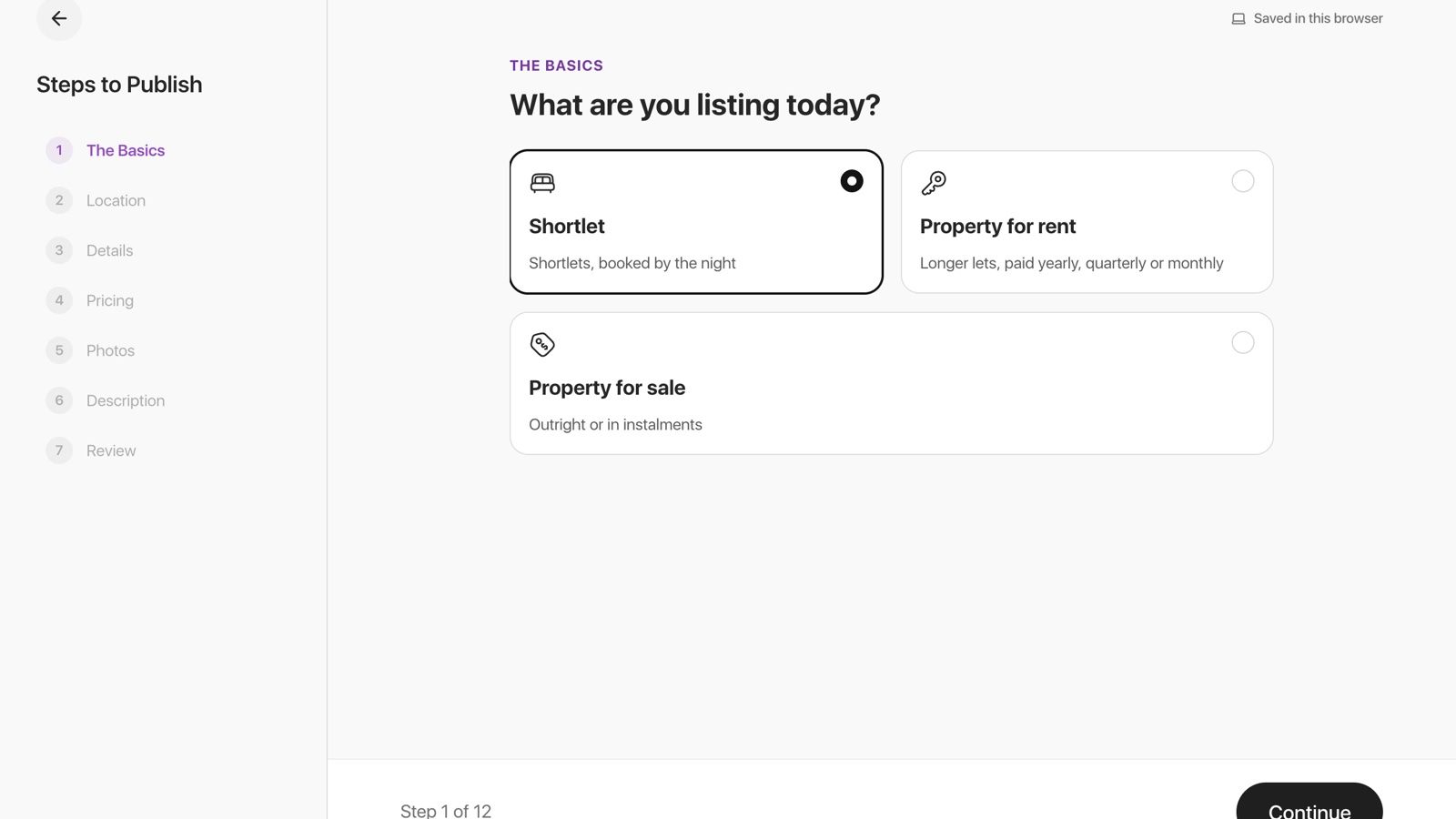
You can list a shortlet, a home for rent or a property for sale on Hauslet in a few minutes. You answer one question per screen, Hauslet saves your answers as you go, and you can stop and pick up where you left off.
Before you start
- At least 3 photos of the place. Most listings use 8 or more.
- The address: state, area or city, and street.
- Your price, and any extra charges such as a cleaning fee or caution fee.
- A verified ID. Hauslet asks you to verify your ID before a listing can go live.
Step 1: Start a new listing
Sign in and open your Hub, then select Add listing on the dashboard. You can also start a listing here.

You can also open Listings and select Create. In the Hauslet app, tap Add listing on the Hub, or the + button on the Listings tab. The steps are the same on the web and in the app.
Step 2: The basics
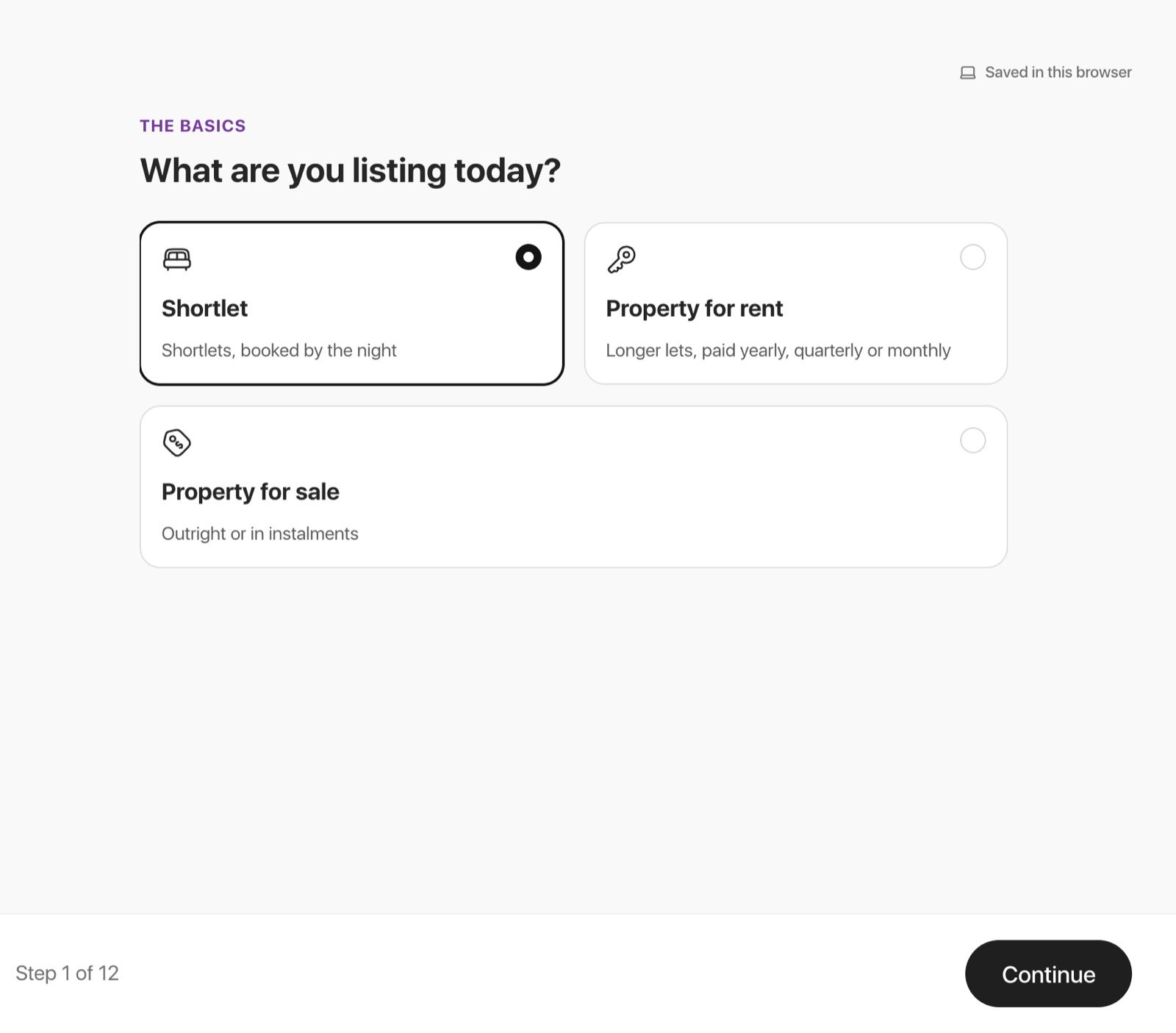
First, choose what you're listing: Shortlet, Property for rent or Property for sale.
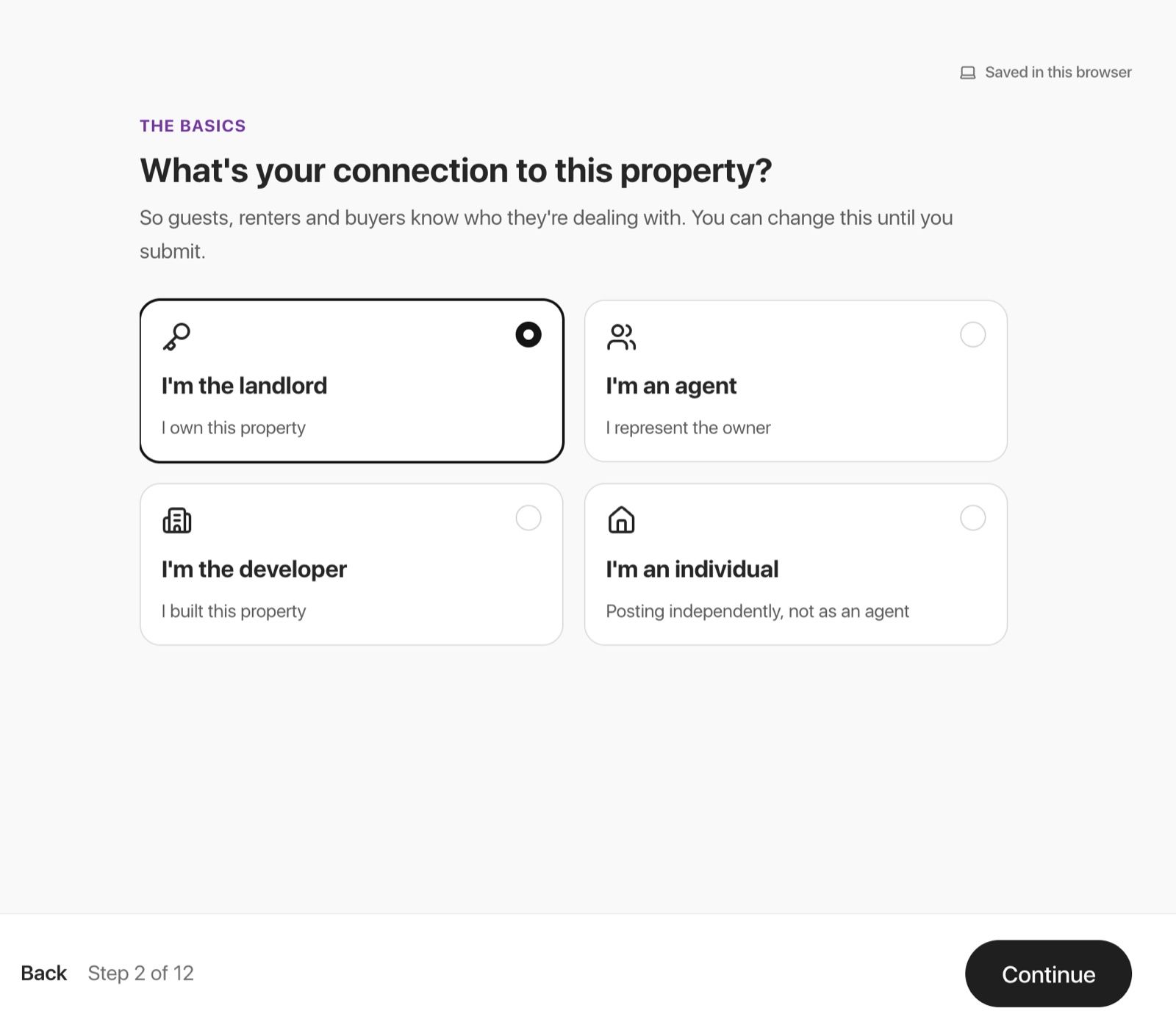
Next, say how you're connected to the property: the landlord, an agent, the developer, or an individual posting independently. You can change this until you submit.
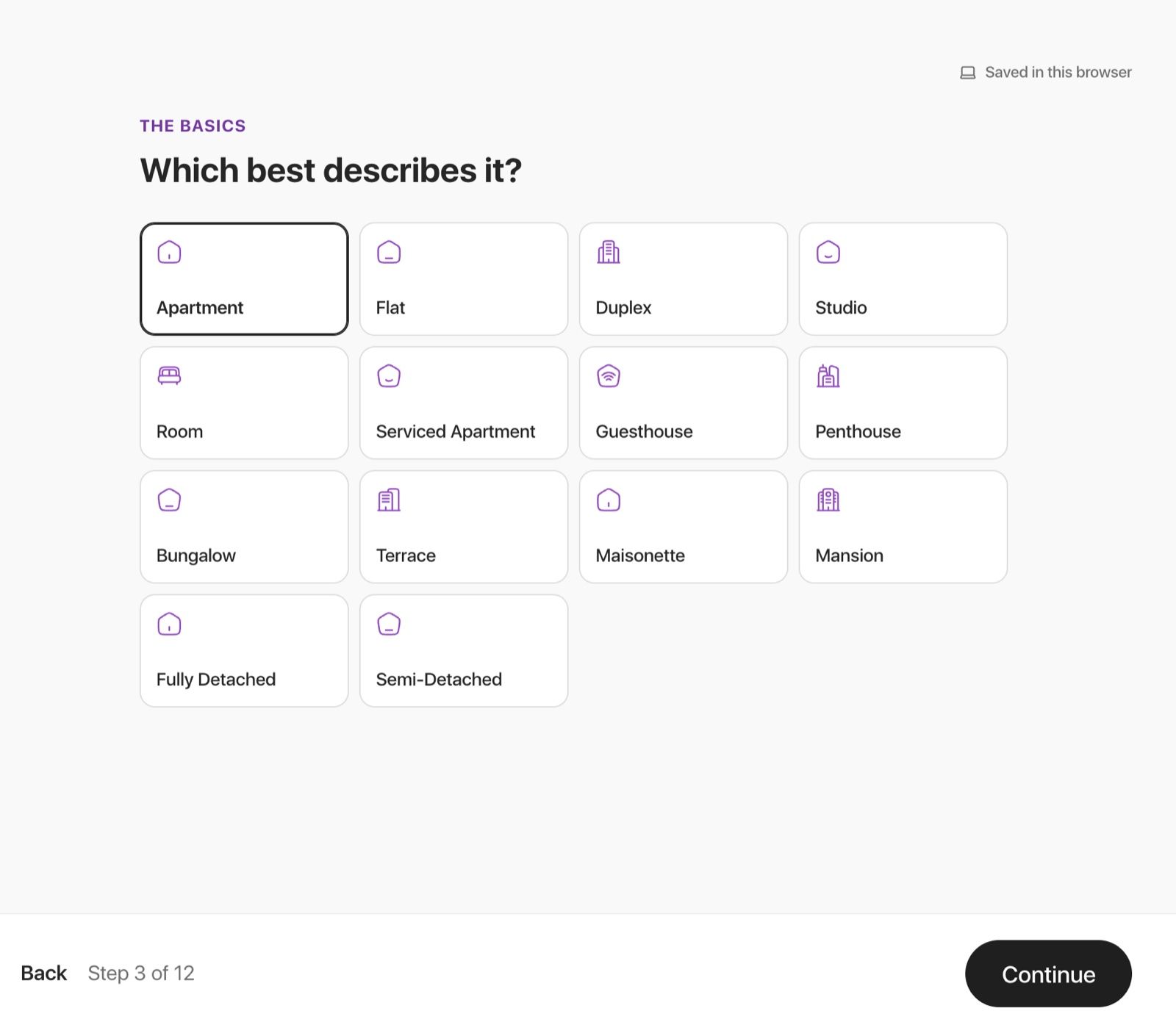
Then pick the property type, such as Apartment, Duplex or Studio. For a rental or a sale you also choose Residential or Commercial first. From this step on, your draft is saved to your account.
Step 3: Location
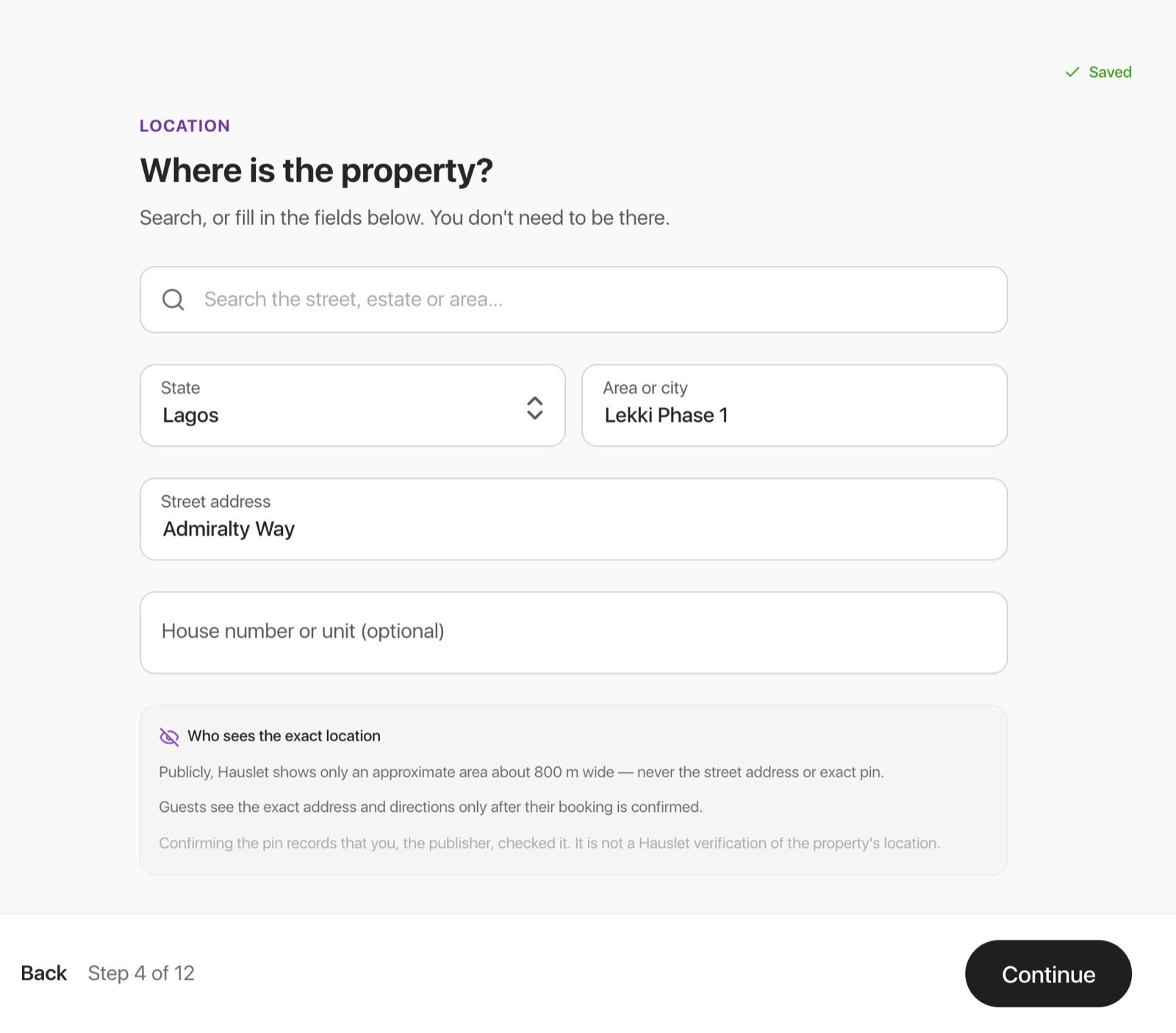
Search for the street, estate or area, or fill in State, Area or city and Street address yourself. The house number or unit is optional, and you don't need to be at the property.
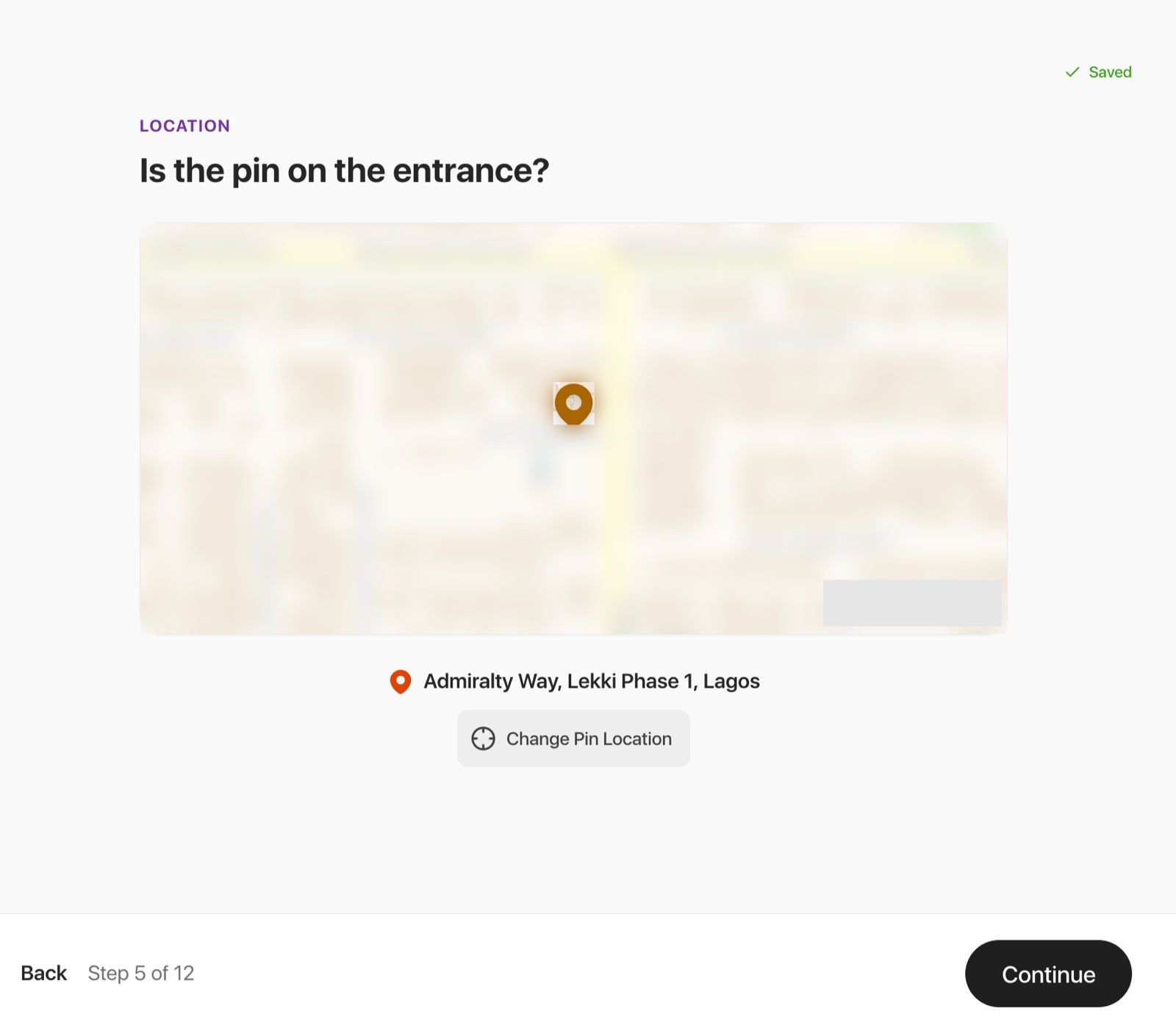
Next, place the map pin on the property's entrance and confirm it. Use Change Pin Location if it needs moving.
Step 4: Details
Enter the number of bedrooms and bathrooms. Toilets and floor area are optional.
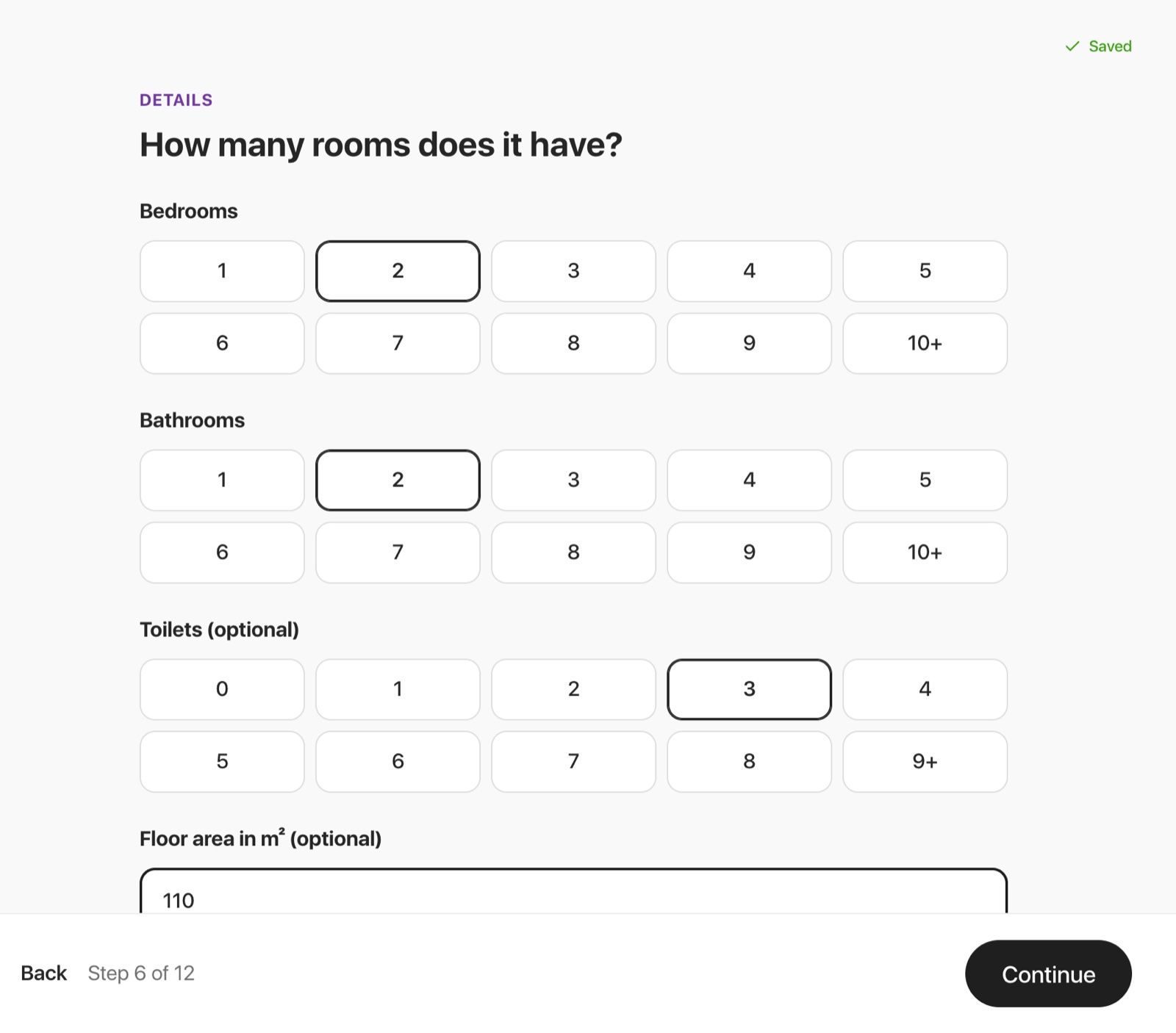
For a shortlet you also choose what guests get (the entire place, a private room or a shared space) and the maximum number of guests.
Step 5: Pricing
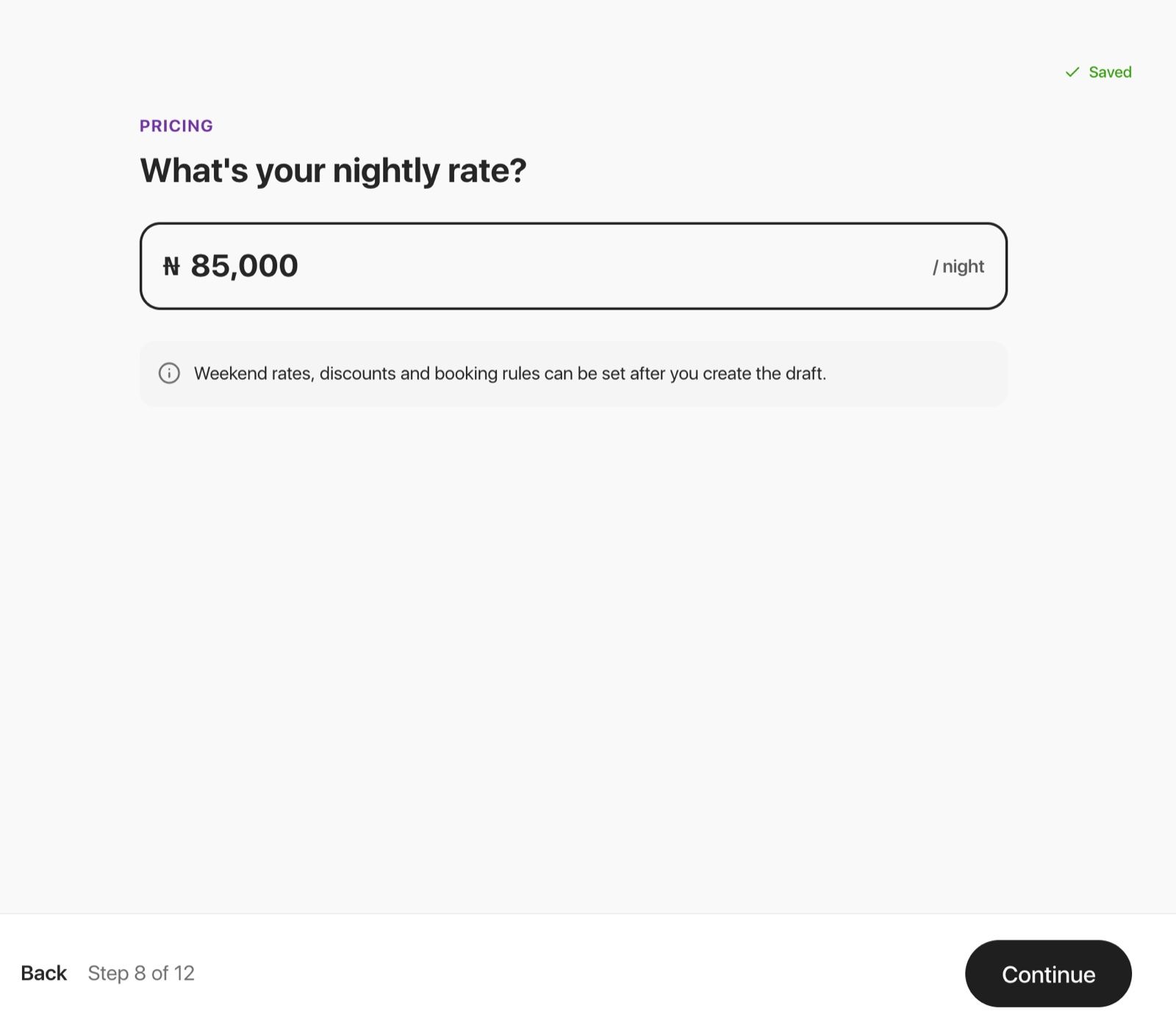
Enter your nightly rate. Weekend rates, discounts and booking rules can be set after you create the draft.
Then add any charges on top of the rate, such as a cleaning fee or a caution fee, or choose None. Each charge can be a fixed amount or a percentage of the nightly rate, per stay or per night. Guests see these before they book.
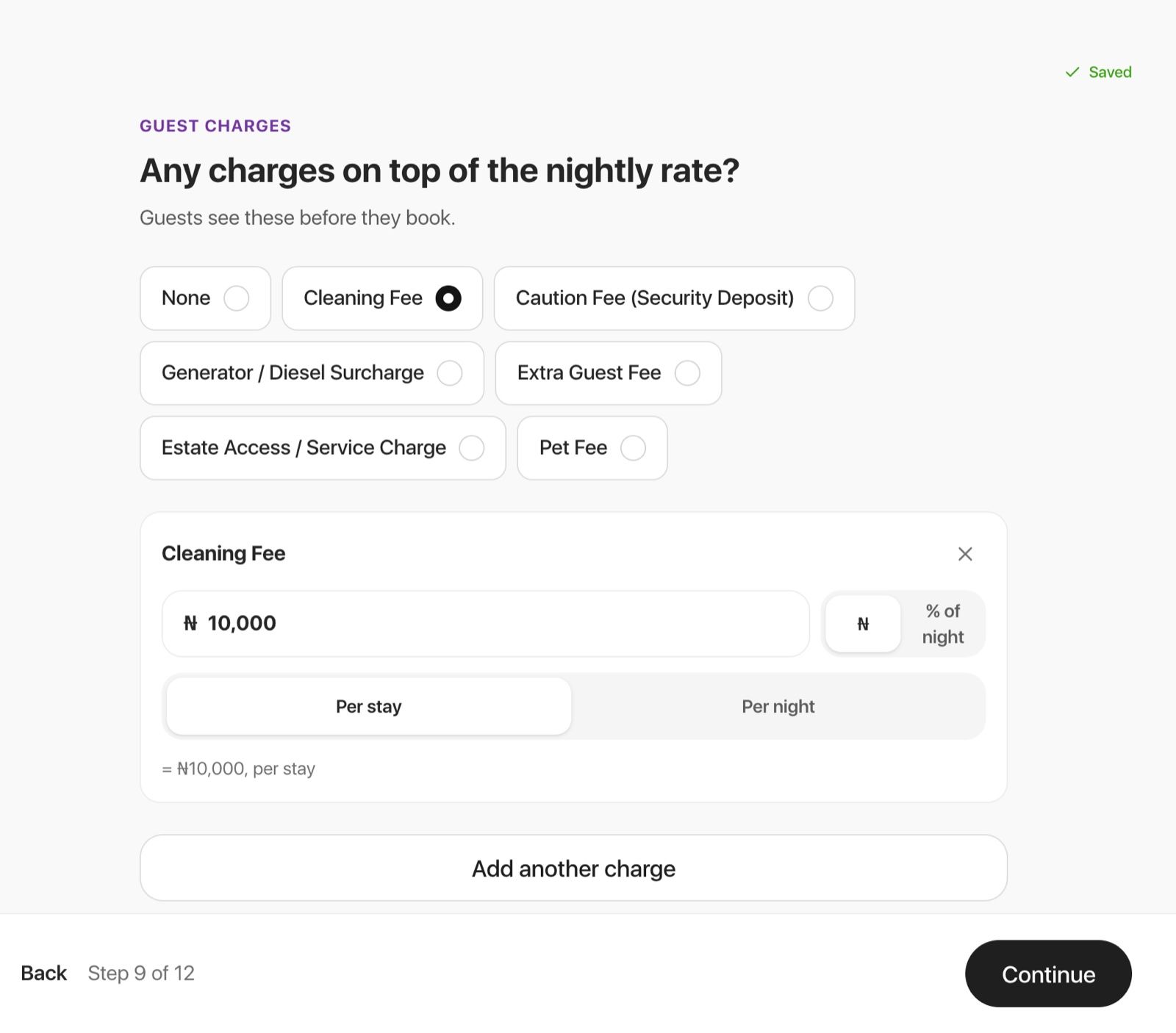
For a rental you set the rent per year, quarter or month, then what a tenant pays when moving in. For a sale you set the asking price, then what a buyer pays on top of it.
Step 6: Photos
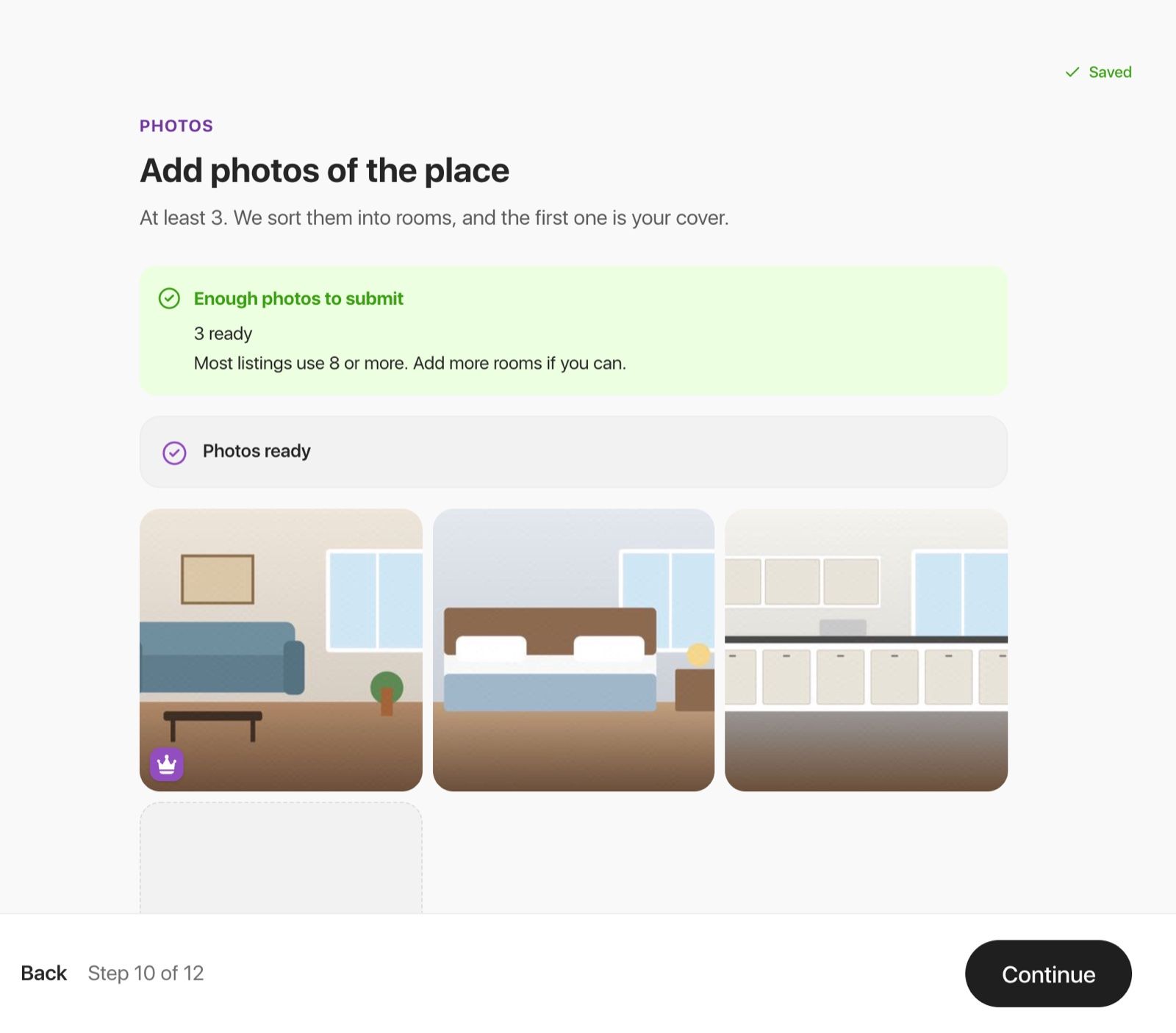
Add at least 3 photos. Hauslet sorts them into rooms, and the first one becomes your cover. Most listings use 8 or more, so add more rooms if you can.
Step 7: Description
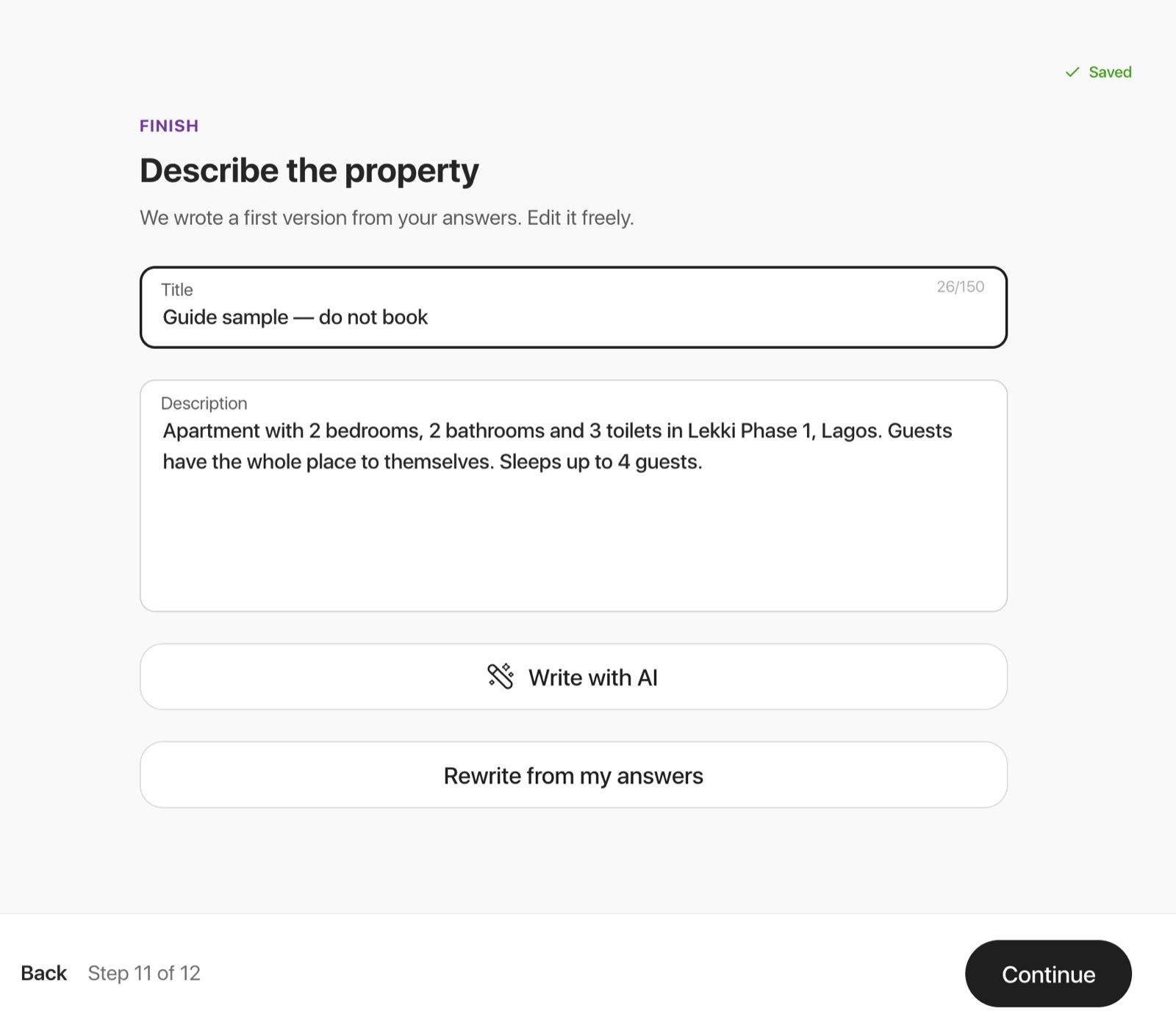
Hauslet writes a first title and description from your answers. Edit them freely, or use Write with AI. The description needs at least 50 characters.
Step 8: Check and submit
Check your answers and select Change next to anything you want to fix. When everything needed is done, select Submit for review.
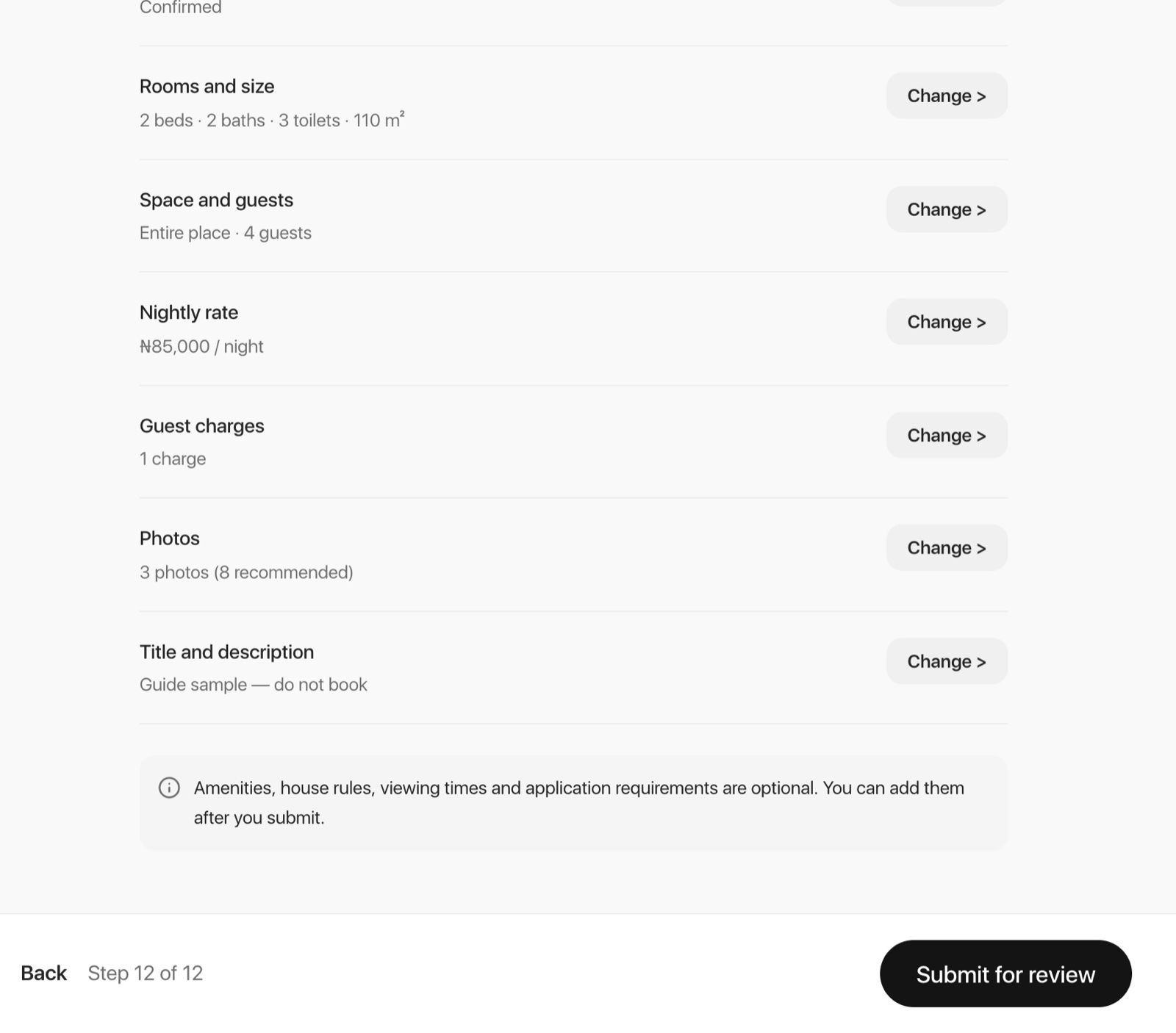
Amenities, house rules, viewing times and application requirements are optional. You can add them after you submit, from Edit listing on the listing's page.
What happens next
- Hauslet reviews every new listing before it goes live. While it's being reviewed, your listing shows Pending Review.
- We'll notify you once it's approved, and your listing goes live.
- If your ID isn't verified yet, Hauslet asks you to verify it first.
- Stopped part-way? Open Listings and select Continue draft, or start again and choose Continue your listing.
Ready? Start your listing.
Hauslet Team
Hauslet
The people building Hauslet.